On This Page
How Daylight Saving Time Affects Appointment Scheduling and Automated Reminders
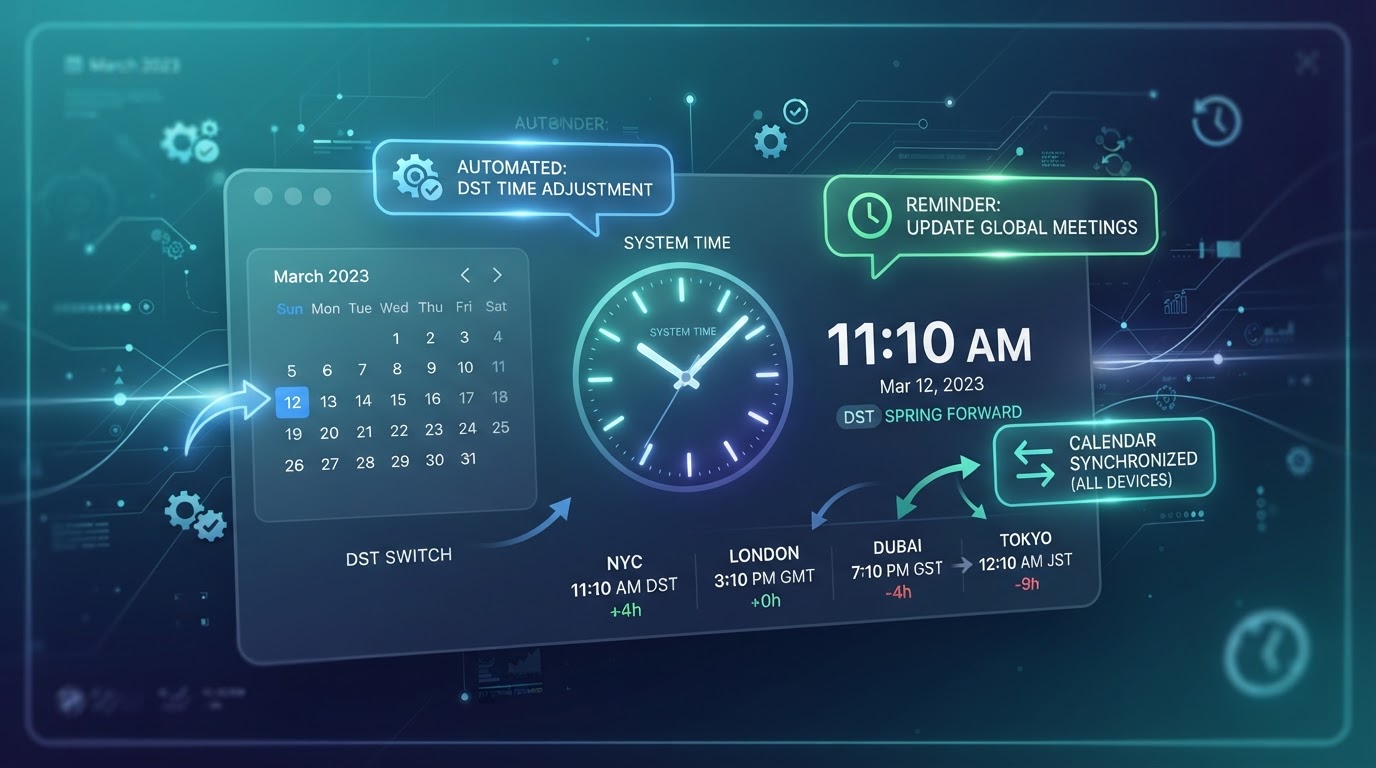
Twice a year, Daylight Saving Time transitions quietly break appointment scheduling systems across the country. Customers show up an hour early or late, automated reminders fire at the wrong time, and time-based automations drift out of sync. The damage is invisible until a customer misses an appointment — or worse, shows up when you're closed. November 1, when clocks fall back, is the perfect time to audit how your scheduling and reminder systems handle time zone changes. This guide explains exactly what breaks during DST transitions, how to fix it, and how to build calendar automations that are robust across time zones year-round.
01What Actually Breaks During DST Transitions
The core problem is ambiguity: during a DST transition, a specific clock time can refer to two different moments (fall-back) or no moment at all (spring-forward). '2:30 AM on November 1' happens twice in most US time zones — once in daylight time, once in standard time. If your scheduling system stores times as clock strings ('2:30 AM') instead of absolute moments (ISO 8601 with timezone offset), it can't distinguish between the two — and neither can your reminder automation.
Here's what breaks in practice:
| System | What Breaks | Symptom |
|---|---|---|
| Appointment scheduling | Ambiguous times | Double-bookings at 2 AM |
| SMS reminders | Wrong send time | Reminders 1 hour early/late |
| Calendar sync | Offset mismatch | Appointments shifted 1 hour |
| Reporting | Time-window errors | Metrics off by 1 hour |
| API integrations | Timestamp confusion | Data logged at wrong time |
The most visible failure is reminder timing. An automated SMS reminder set to fire '24 hours before the appointment' calculates the send time based on the stored appointment time. If the appointment time is stored without timezone awareness, the reminder fires an hour off after a DST transition — the customer gets a reminder at the wrong time, shows up at the wrong time, or misses the appointment entirely. According to the IANA Time Zone Database documentation, the only robust solution is storing all times as absolute moments with explicit timezone identifiers — not as local clock strings.
02The Root Cause: Storing Clocks Instead of Moments
The fundamental fix is to store every appointment time as an absolute moment — a specific point in time that doesn't change regardless of DST transitions. The standard format is ISO 8601 with a timezone offset: `2026-11-01T14:30:00-07:00` (2:30 PM Pacific Daylight Time) or `2026-11-01T14:30:00-08:00` (2:30 PM Pacific Standard Time). These are two different absolute moments, and a timezone-aware system can distinguish them.
The mistake most systems make is storing times as local clock strings ('2:30 PM') without a timezone, or storing them in the server's timezone without recording what that timezone was. When DST transitions, the system reinterprets the stored time in the new offset — and every appointment shifts by an hour. This is why calendar sync breaks: Google Calendar stores times correctly (as absolute moments), but if your CRM stores them as local strings and syncs to Google, the sync introduces the offset error.
The fix is architectural: ensure every system in your scheduling stack stores and transmits times as absolute moments with explicit timezones. Most modern CRMs and scheduling tools do this correctly — but legacy systems, custom integrations, and spreadsheets often don't. If you're building a custom scheduling automation, use a timezone library (like `date-fns-tz` or `moment-timezone`) that handles DST transitions explicitly. Our workflow and integration automation builds use timezone-aware time handling as a baseline — it's not optional for any scheduling system.
03How to Audit Your Scheduling System Before DST
Before November 1, run this audit on your scheduling and reminder systems:
1. Check how appointments are stored. Look at your CRM or scheduling tool's data — are times stored with timezone offsets, or as local strings? If you can't tell, contact the vendor or check the API documentation. Modern tools (Calendly, Google Calendar, most CRMs) store correctly; spreadsheets and custom databases often don't.
2. Test a reminder for a post-transition appointment. Book a test appointment for November 2 (after the fall-back) and check when the reminder fires. If it fires at the wrong time, your reminder system has a timezone bug. This is the most direct test — and the one that reveals the problem before a real customer is affected.
3. Check calendar sync. If appointments sync between your CRM and Google Calendar (or Outlook), verify that a post-transition appointment shows the correct time in both systems. Sync bugs are common and silent — the appointment looks right in one system and wrong in the other.
4. Review time-based automations. Any workflow that triggers based on time ('send reminder 24 hours before,' 'check in 7 days after,' 'report every Monday at 8 AM') should be tested for DST correctness. The automation monitoring best practices guide covers how to set up alerts that catch timing errors before they affect customers.
Fill Your Calendar and Cut No-Shows
We connect your booking system, automate reminders, and follow up automatically — so appointments stick and your team's time isn't wasted.
04Building DST-Resilient Calendar Automations
If you're building or maintaining calendar automations, follow these principles to make them robust across DST transitions and time zones:
Store times as absolute moments. Every appointment, reminder, and scheduled trigger should be stored and processed as an ISO 8601 timestamp with a timezone offset. Never store '2:30 PM' without knowing which 2:30 PM — there are two on November 1.
Use timezone-aware libraries. Don't calculate time differences manually — use a library that understands DST. `date-fns-tz`, `luxon`, and `moment-timezone` all handle transitions correctly. Manual arithmetic (`appointmentTime - 24 hours`) breaks during DST because '24 hours' isn't always 24 hours of clock time near a transition.
Display times in the customer's timezone. A customer in New York booking with a business in California should see the appointment time in their own timezone — but the stored time should be the absolute moment. This is how Google Calendar and Calendly work: store the moment, display in the viewer's timezone. Your scheduling automation should do the same.
Test across transitions. Before launching any scheduling automation, test it with appointments that span a DST transition. Book one for the day before, one for the transition night, and one for the day after — verify all reminders fire at the correct time. This is the only reliable way to catch timezone bugs before they affect real customers. Our appointment and calendar automation builds include this testing as a standard step.
05Failure Cases and Human Handoff
The most common DST failure we see is the 'Monday morning surprise.' A business's automated reminders were working fine all summer. On the Monday after fall-back, customers start calling: 'I got my reminder at 8 AM but my appointment is at 9 — your system says 10.' The reminder system stored times without timezone awareness, and after the transition, every reminder shifted by an hour. The business doesn't notice until customers complain — by which point some have already missed appointments.
The fix is the audit above — but the human handoff matters too. During DST transition weeks, have a staff member manually verify that the day's reminders went out at the correct time. A 5-minute morning check during transition week catches timing errors before they cascade. This is a case where human oversight adds a safety net that automation alone can't provide — the automation should be correct, but a human verification during the known-risky period is prudent.
A limitation to acknowledge: even with perfect timezone handling, some customers will be confused by DST. A customer who doesn't realize clocks changed may show up an hour off regardless of your system's correctness. The defense is clear communication: during transition week, include 'Please note: clocks change this weekend' in appointment confirmations. This sets expectations and reduces confusion — it's not a technical fix, but it's an effective one.
06An Anonymized Example from Our Work
A multi-location med spa with clinics in California and Arizona came to us after a DST disaster. Arizona doesn't observe DST; California does. Their scheduling system stored times without timezone awareness, so when California fell back in November, appointments synced between the two locations shifted by an hour — California patients received Arizona-time reminders, and vice versa. The result: 23 missed appointments in one week, roughly $5,750 in lost revenue, and a wave of negative reviews from confused patients.
We rebuilt the scheduling integration with timezone-aware time handling: every appointment stored as an ISO 8601 timestamp with the location's timezone, reminders calculated using a timezone library, and display times converted to the patient's local timezone. We added a DST transition test to their deployment checklist — before every transition, a test appointment is booked across the transition and the reminder timing is verified. In the two transitions since the fix, zero timing errors. The $5,750/week loss became a $0/week loss — and the reviews recovered because patients stopped showing up at the wrong time.
07Time to Fix Your Time Handling
Daylight Saving Time is a predictable, twice-yearly stress test for your scheduling systems. The businesses that handle it correctly aren't doing anything exotic — they're storing times as absolute moments, using timezone-aware libraries, and testing across transitions. The businesses that fail are usually unaware of the issue until customers start missing appointments. November 1 is coming; use it as a prompt to audit your scheduling and reminder systems. If you're not sure whether your systems are DST-resilient, the appointment and calendar automation service includes a full timezone audit and fix — because the most expensive time error is the one you discover when a customer doesn't show up.
Key Takeaways
- DST transitions break scheduling systems that store clock times instead of absolute moments — '2:30 AM' happens twice on November 1.
- The root cause is storing times as local strings without timezone offsets; the fix is ISO 8601 timestamps with explicit timezones.
- Audit before November 1: check storage format, test a post-transition reminder, verify calendar sync, review time-based automations.
- Use timezone-aware libraries (date-fns-tz, luxon) — manual time arithmetic breaks during transitions because '24 hours' isn't always 24 clock hours.
- During transition week, add human verification of reminder timing and clear customer communication about the clock change.
Frequently Asked Questions

Written by Moise
Founder & Lead Automation ArchitectMoise is the founder and lead automation architect at Wootomatic. With over a decade of hands-on experience designing, implementing, and maintaining high-throughput business automations, CRM pipelines, and custom AI agents, he has architected mission-critical workflows for hundreds of appointment-based and field-service businesses. His focus is on resilient, monitored systems that produce measurable ROI without fragile software bloat.
Put This Into Practice
We build and manage these automations for service businesses on a flexible monthly subscription. Explore the related service to see how it works: